How to create your App Store product page

Your App Store listing is viewed by users when they search for your app in the App Store or review their previously installed apps needing updates. Whether it's a first impression or repeat visit, it's important to demonstrate to users the quality of your app and why it deserves to be installed or updated. Your App Store listing also needs to be fully compliant with Apple's guidelines for your app submission to be approved. In this article we'll go through all the components of an App Store listing so you can ensure your app will win over users and receive the green light from Apple. When using Median's App Store Publishing Service you'll get even more of a leg up with our guarantee of App Store approval.
An effective App Store listing is important to your app’s overall success.
That’s why it’s crucial to learn the key elements that make for a powerful Apple App Store product page. From crafting an app name and designing an app icon to optimizing your app’s description, screenshot, promotional text, and keywords — all play a significant part in optimizing your app for the App Store, and meeting Apple’s strict guidelines.
Why? All these elements are important for an app to be successfully accepted into the App Store.
To better understand the elements of a listing, it's important to have knowledge of the App Store review guidelines laid out by Apple. As an app developer, it is your responsibility to thoroughly review and adhere to the App Store guidelines to ensure your app is accepted.
On a deeper level, each App Store element has its own set of rules and guidelines that needs to be followed. Let’s take a closer look at each of them.
Enter any URL to build your app
What are the elements of an App Store listing?
App Name
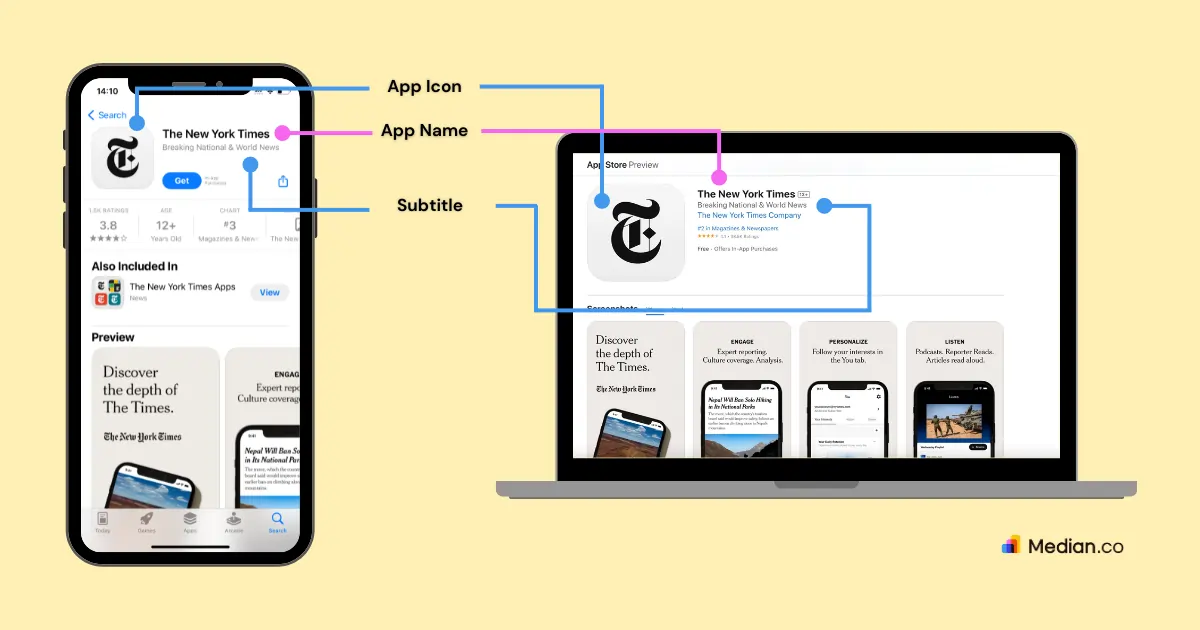
Your App Store listing App Name helps users discover your app in the Apple App Store. The name itself can be different from the app name used on your app. In our example (see image above) the app name on the device (when downloaded) is "NYTimes" whereas the App Store listing App Name is "The New York Times".
Apple recommends that your app name should be simple, easy to spell, memorable, and be descriptive where possible. Your app name can be up to 30 characters long.
Some strategies you can use when creating an app name:
Choose a distinctive app name that will stand out in the crowded App Store
Avoid generic terms that are too similar to other apps
For more clarity, in your app name, cleverly describe what your app does
Create a new word by combining two relevant keywords together (i.e. “Snapchat”)
Use creative play on words if you want to make your app appealing to Gen Z (i.e.“TikTok”)
You can invent an entirely new word to make your app name more unique (Examples include “Spotify”, “Uber”, and “X (formerly Twitter)”.
You can also use acronyms as your app name (i.e. “IMDB” or “WTSO”)
Tip: Test your app name through A/B testing to see which name resonates best with your audience.
App Icon
Your app icon is the first point of visual contact to a user when they come across your app in the App Store.
Apple suggests working with a graphic designer to create an icon that is simple and recognizable. Apple also has strict UI do’s and don’ts for app icons, so ensure you meet the set guidelines.
Some strategies to consider when crafting your app icon:
Make sure your app icon is simple and unique while expressing your app’s core idea.
Avoid cluttering your icon — simplicity is key!
Avoid using text in icons unless necessary; e.g. the relaxation app “Calm” uses its brand name as their app icon (see image below).

Source: Apple App Store
Consider what your app icon will look like if tinted or in dark mode — both are possible with the release of iOS 18
Note: You will need to provide your icon in multiple image sizes for usage across the App Store.
Tip: Customize your app icon’s size and attributes to meet all the Apple device’s size requirements — like iOS, iPadOS, MacOS, watchOS, and tvOS.
Subtitle
Your app’s subtitle is meant to clearly and concisely summarize your app. The subtitles can be up to 30 characters long and appear below the app name.
Apple suggests using the subtitle instead of the app name to explain your app’s value position in detail. This is where you have more space to describe what your app does, highlight features of your app that would guarantee downloads.
You can update your app’s subtitle whenever you submit a new version of your app.
Strategies to consider for a good app subtitle:
Use the 30 character limit allocated by Apple to clearly demonstrate your app’s purpose in a concise manner
Include relevant terms to help users understand what your app is offering
Highlight the unique features that makes your app stand out
Avoid repeating the app name in the subtitle
Be consistent with your brand, maintaining a cohesive tone and style
Localize the subtitle to reach a wider audience globally
Tip: When writing the app subtitle, avoid promotional language such as “Best app ever” or “5-star app” because it can be considered misleading or exaggerated. Apple emphasizes on providing accurate, reliable, and truthful information with zero exaggerations.
App Previews
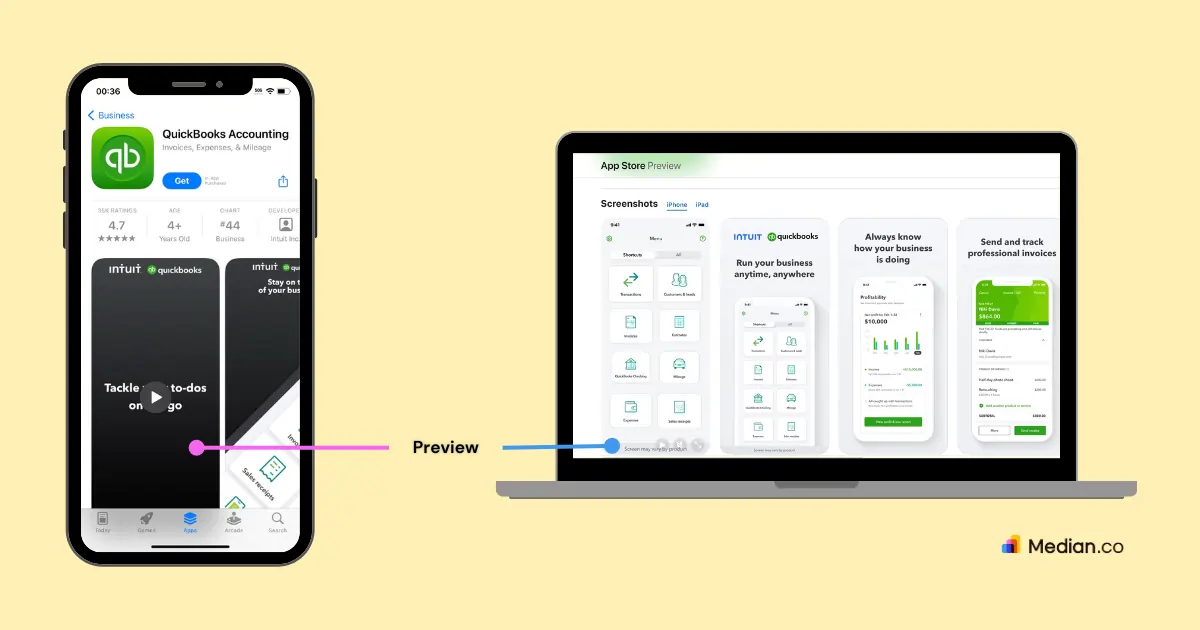
Your app preview displays your app’s features, functionality, and UI in a short video available directly on the App Store.
Apple grants 30 seconds for app previews that include footage captured on the device to show users what the app looks like in action.
You can add up to three app previews on the App Store and localize them to be accessible globally.
Note that app previews automatically play with muted audio when users are on your App Store listing, so make sure the first few seconds of the preview are visually compelling.
Strategies to consider when creating your app preview video:
Highlight your app’s important features within the first few seconds to grab potential users attention and propose your value proposition early on
Keep your video short and engaging to maximize the 30 second limit
Use captions to describe app features to connect with users who are not listening to the audio and to comply with Apple’s accessibility guidelines
Ensure your video is of high quality, with clear visuals and audible sound
Customize your preview for Apple’s various platforms (iPhone, iPad, etc), ensuring each platform-specific features are conveyed clearly
Remain consistent with your app’s branding, including color palettes, fonts, and personality
Tip: Add a compelling CTA in your preview video which will clearly convince people to download your app.
App Screenshots
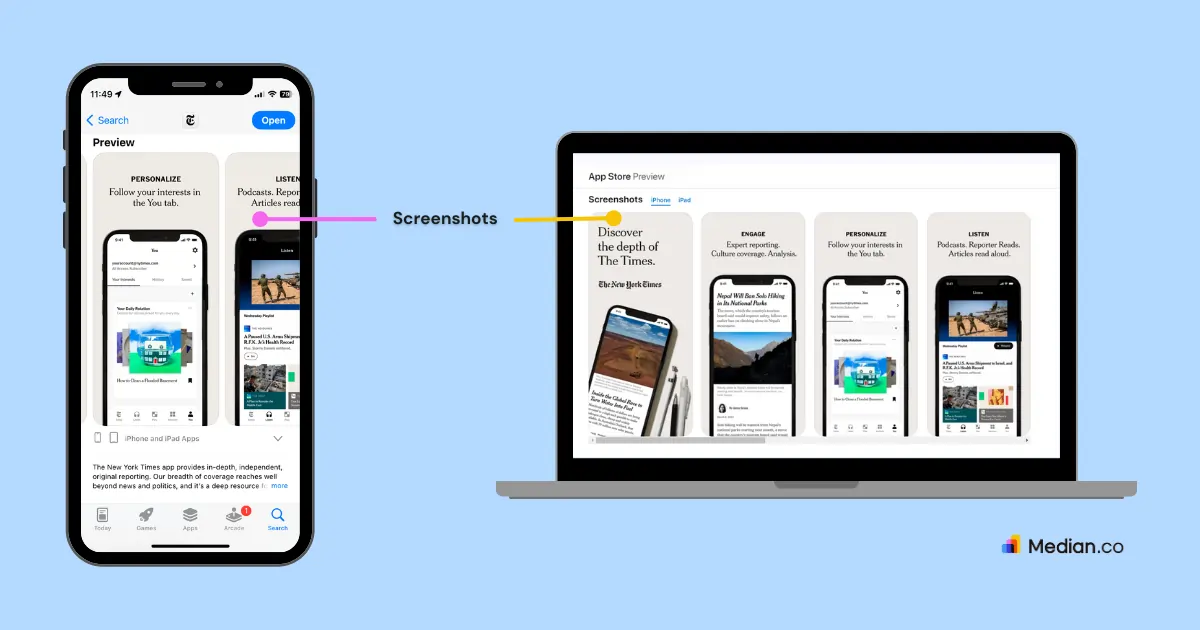
Your app’s screenshots show users a glimpse of your app before they actually choose to download it. These images need to stand out and deliver your app’s value proposition clearly.
Basic screenshots of your app will be accepted by Apple, however, we recommend investing in creating high quality images that include your branding and headlines presenting the features of your app.
Apple allows for 10 screenshots to be uploaded on App Store product pages. If an app preview is not available, the first three screenshots will appear in search results to showcase the app.
Your app screenshot should focus on a main benefit or feature that will fully tell your app’s story and showcase its value.
If dark mode is supported, add one screenshot showing your app’s UI in dark mode — this will ensure users what to expect in each mode.
For iPhones, separate screenshots need to be provided for each of the device sizes, 5.5 inch for iPhones with a home screen button, and 6.5 inch for more recent iPhones.
Images need to be provided in a range of sizes including:
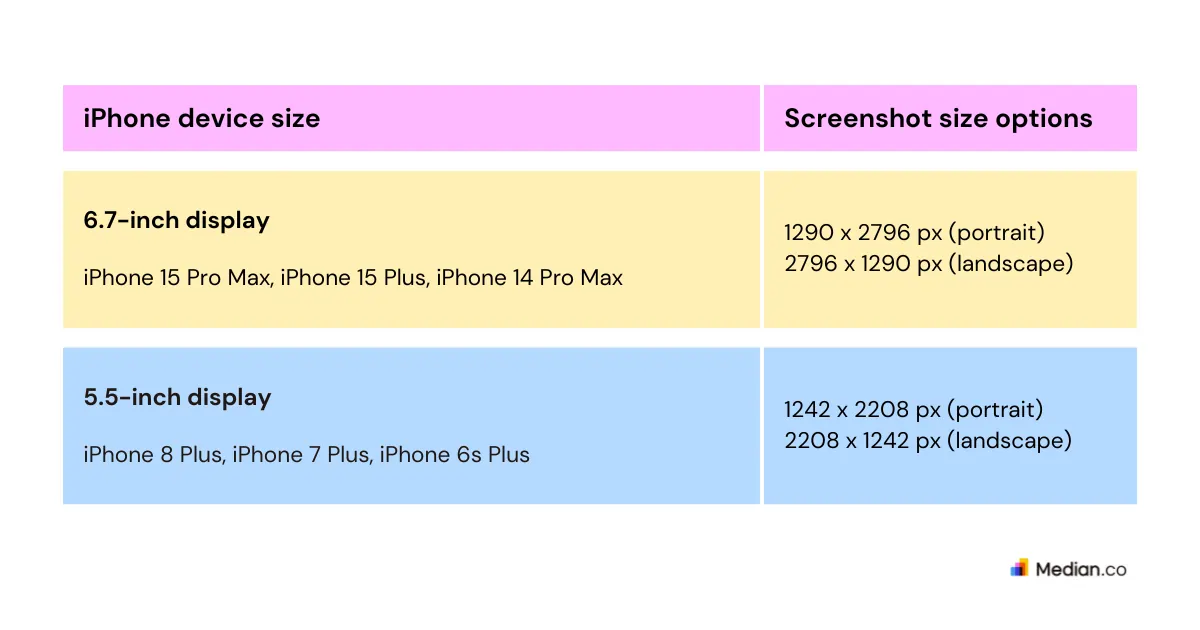
If your app is marked as being compatible with iPads (we recommend doing so in most situations) then you will need to provide screenshots for iPad.
Similarly there are two formats, one for iPads with a home button and more recent iPads. The images need to be provided in the below sizes
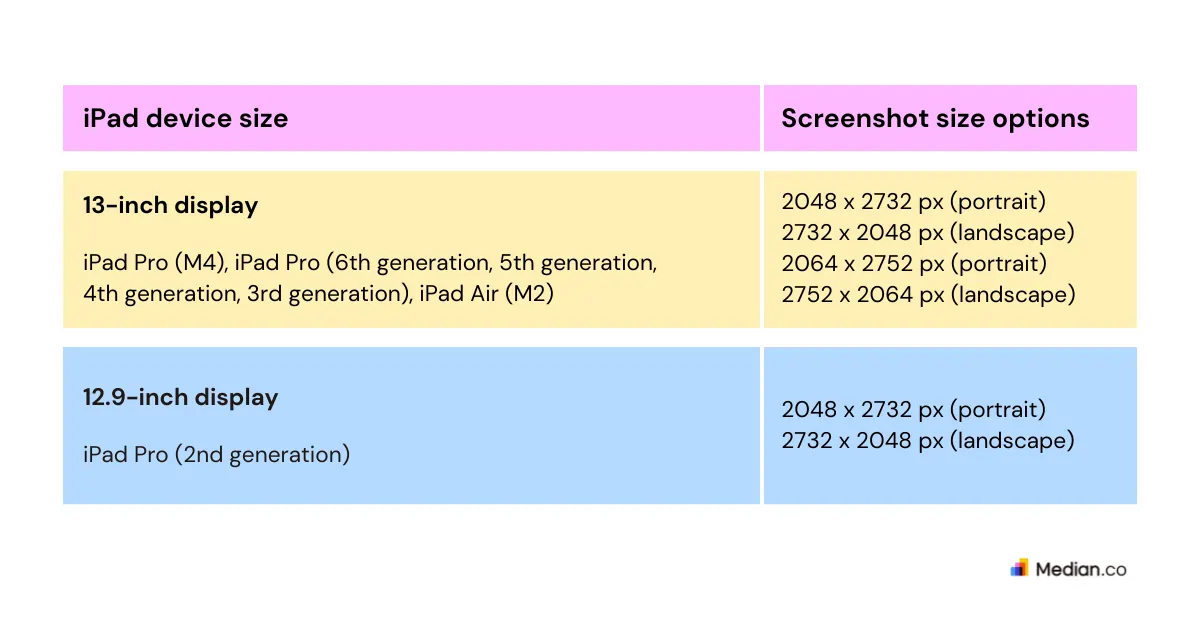
Other strategies to follow:
The preferred file format is PNG but JPEG is also acceptable
Use the RGB color space for better visual representations
Apple requires at least one screenshot for every supported device size
For better reach, use Apple’s 10 screenshot allocation at full and make sure they show your app’s true value
Follow Apple’s App Store screenshot guidelines to ensure your app doesn’t get rejected
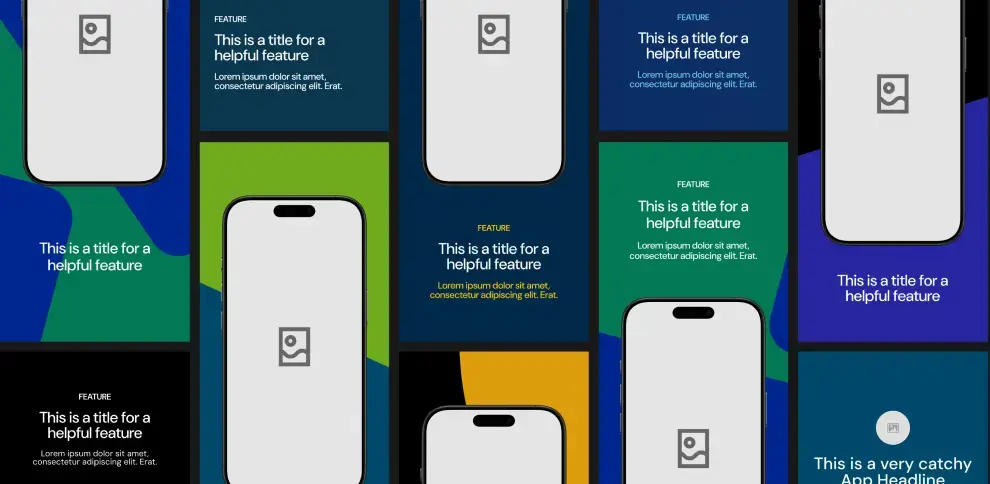
Instant app store facelift. No designer required.
Unlock Median’s 500+ free Figma app store screenshot templates designed to meet iOS and Android guidelines. Your app will look its best across platforms, resulting in more downloads and a more powerful app store presence.
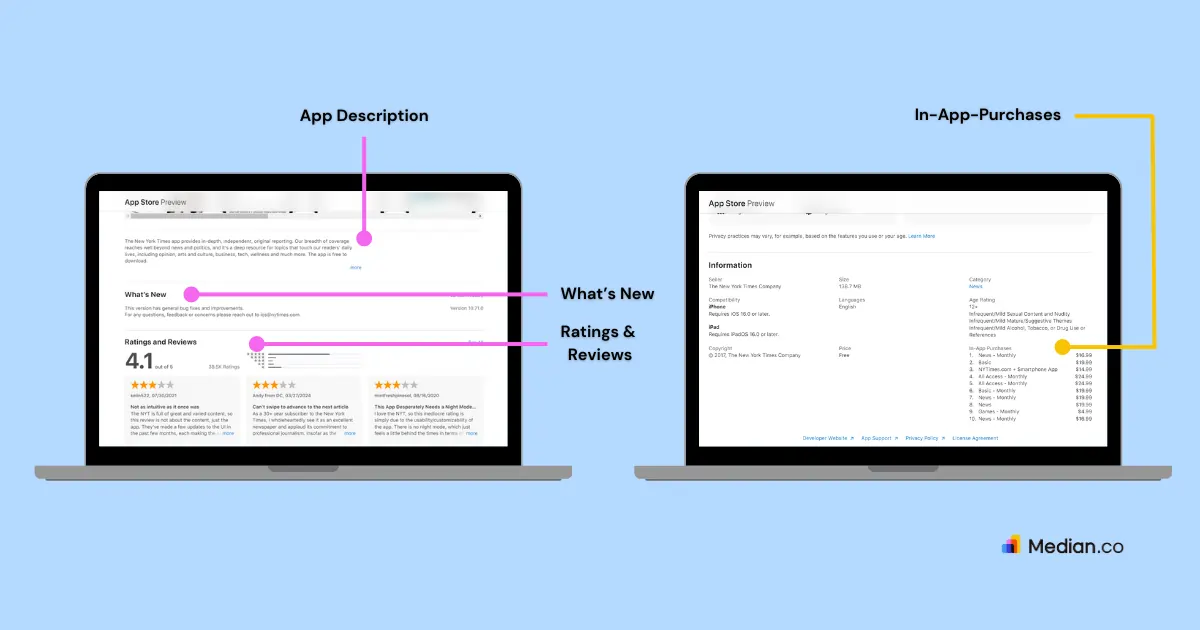
App Store Description
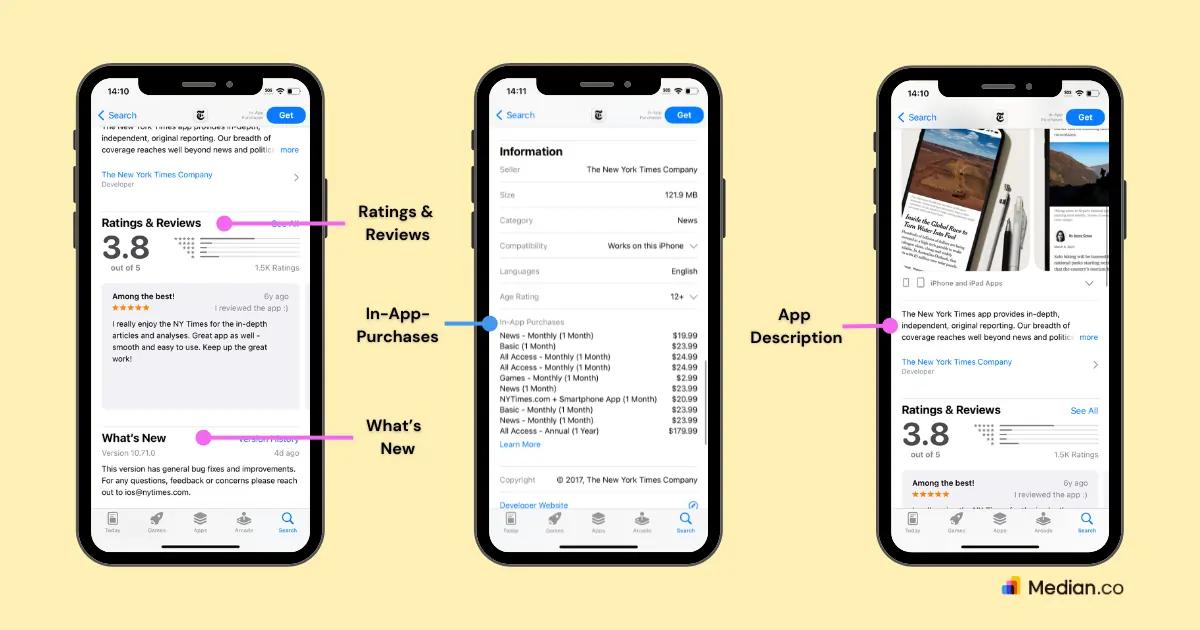
Your App Store description is key for enhancing App Store optimization and showcasing your app’s features, benefits, and values.
It must be engaging, and highlight the key features and functionality of the app. Your app’s description must be a concise, informative paragraph followed by a short list (in the form of bullets) of its main features.
Apple states that for your app listing to be successful, the first sentence of the description should catch people’s attention — users should be able to get an idea of what your app is about without having to tap “read more”.
Also, be consistent with your branding: Communicate in the tone your audience is familiar with and use terminology that resonates with your target audience.
You can update your app’s description when a new version of the app is submitted. Apple suggests using promotional text to share important updates more frequently rather than re-submitting the app just to update the description.
Strategies to consider when writing your App Store description:
Avoid unnecessary keywords
Avoid including specific prices in the description because it may not be accurate in all regions
Write in a friendly tone that will help connect with new users
Highlight what sets your app apart from competitors
Use bullet points to list features
End the description with a compelling call-to-action encouraging users to download the app
Tip: To reach a global audience, consider localizing your app description so that it's accessible to local audiences worldwide.
In-App Purchases (IAP)
In-App Purchases are a monetization strategy that allows app users to make purchases within your app. This strategy is especially popular among e-commerce apps and gaming apps that include various products and services to buy.
Apple allows IAP to be viewed and started from your App Store listing page. Both In-App Purchases and subscription packages get their own section on your product page — allowing you to include up to 20 total items across the two sections.
Apple lets you choose the order of the list, making sure important products and packages are displayed on top of the section.
Each item has its own display name, promotional image, and description. In-App Purchase names are limited to 30 characters and descriptions are limited to 45 characters, so be descriptive, accurate, and concise when highlighting their benefits.
IAPs also appear in search results. When users find your in-app purchase there, they will be taken directly to your App Store listing. In the listing page, viewers can engage with your app’s description, screenshots, and previews, or even start an IAP.
Apple prompts users to download your app if they start an IAP but haven’t installed the app yet. This is to ensure safety, and Apple will not complete the transaction otherwise.
Some strategies to consider for In-App purchases:
In your App Store description, talk about the most valuable IAP available in your app
Use screenshots to demonstrate the features or benefits your IAP
Add clear, descriptive titles to your IAP to ensure they stand out in the App Store listing
Use Apple’s promotional text section of the App Store product page to highlight limited-time offers/ discounts
Tip: Monitor app reviews and respond to feedback mentioning in-app purchases — this will raise awareness to your IAP, address user concerns, and highlight the benefits of your IAP.
What’s New
The “What’s New” section of your App Store page allows you to effectively communicate changes included in the latest release of your app. This information is displayed on your App Store listing page and on the Updates tab in the App Store app.
You can use What's New to provide release notes with details on what's changed in the most recent version of your app, and why users should download your update.
This is where you can write about:
New features and functionality
Performance improvements and bug fixes
Tip: Add a CTA in the What’s New section to excite users about new updates and motivate them to download your app.
Ratings and Reviews
Ratings and Reviews play an important role in showcasing your app’s credibility to new users. They influence how well your app ranks in search and increases user engagement.
That’s why it’s important to focus on providing your target audience a top-quality, highly engaging app that encourages users to leave positive reviews.
Apple has a “summary rating” system — this means that Individual ratings make up your app’s summary rating. This is then displayed on your App Store listings page.
With Apple’s SKStoreReviewController API, you can easily let users send in their feedback within the app. You can do this by:
Prompting users to rate your app — you can prompt for rating up to three times in a year (365 days)
Then, users will submit a rating through the received prompt — they can write a review and submit it all within the app.
Note: For Median customers we have an App Review native plugin that makes this functionality easily available.
Apple also lets you respond to user reviews via App Store Connect. You can directly address user feedback, questions, and concerns, enhancing app user loyalty.
The user will be notified and will get the option to update their review. Remember, reviews can be updated whenever users choose to do so, but only the latest reviews and responses will be displayed on your App Store listing.
Tip: Monitor user activity and prompt for reviews and feedback accordingly. If a user is engaging with the in-app purchases feature, then that should be your sign to prompt for feedback.
Promotional Text
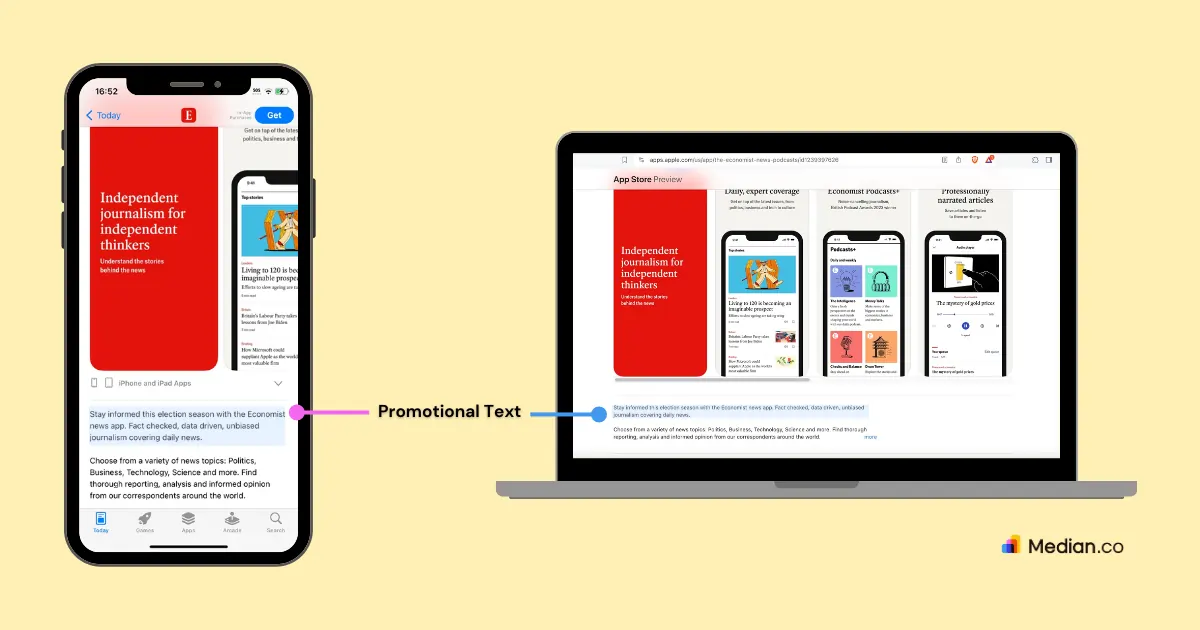
The promotional text for your App Store listing appears at the top of the description and is up to 170 characters long. This is what sells your app — so make sure it is eye-catching and proposes the app’s benefits and value.
Use this space to share the latest news about your app, such as limited-time sales or upcoming features.
Your app’s promotional text can be updated any time — it doesn’t require you to submit a new version of your app and it doesn’t require App Store approval to change.
Strategies to consider when writing your promotional text:
Because of the 170 character limit, make sure your promotional text is concise and straight to the point.
Talk about any recent updates or new features to show that you’re continuously working to improve the app
Use phrases like “Limited time offer” or “Exclusive offer” to create a sense of urgency
Use easy to understand language and avoid technical terms that may confuse users that are not tech savvy
A/B test your app’s promotional text to see what version works best with your audience — the key is to get your app downloaded with eye-catching text
Tip: Consider adding a clear, strong and convincing CTA, such as “Download now” or “Get started today” to guide your audience through the next step.
Keywords
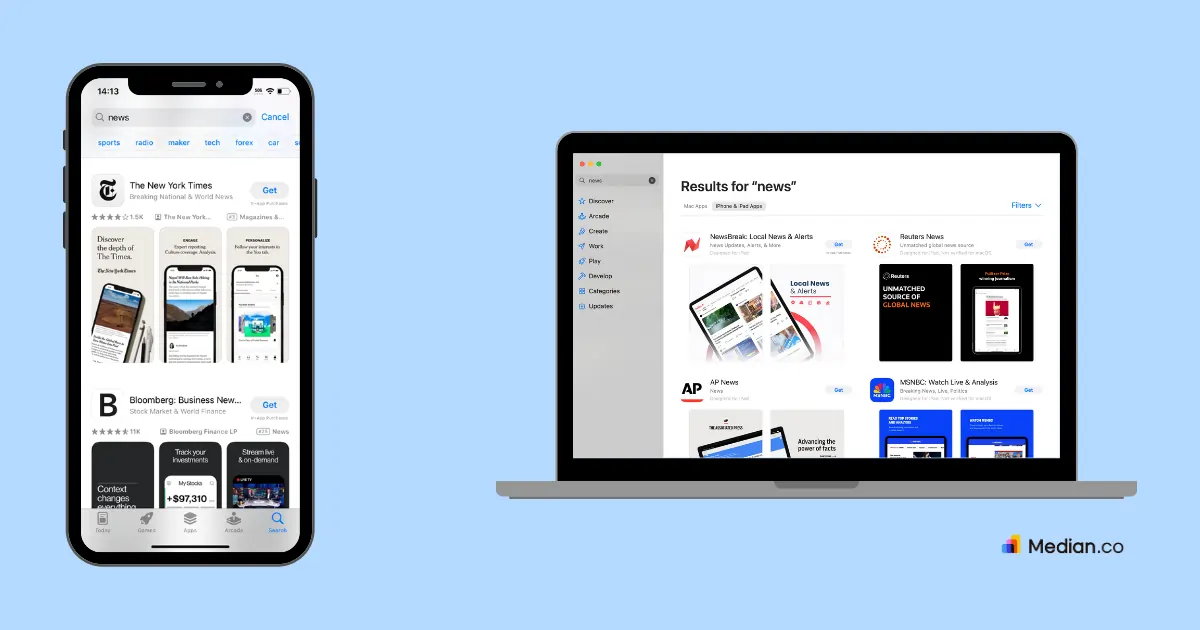
Keywords help users find your app, providing Apple the necessary information related to your app to help the App Store display it in search results.
Carefully choosing the right keywords is very important to boost your overall App Store optimization strategy. Use keywords that you think users will use to find an app similar to yours.
Be specific in describing your app’s features — this will help the App Store search algorithm to prioritize your app in relevant searches.
Apple does have a limit to keywords: At 100 characters total, you can separate your keywords with commas and not spaces (however, you can have a two-word keyword, i.e.: Car, Rental, Car Sales) — ensure that all 100 characters are used in full.
Note: Keywords are used to help your app be discover-able to the end user. They contribute to search results and recommendations but aren’t the only decisive component for visibility.
Some strategies to consider when setting up your keywords:
It’s best to identify up to 5 terms that describe your app’s functionality and list them as keywords for your App Store product
Ensure the core features of your app are referred to in the keywords in simple and clear language
Consider keywords that describe your target audience’s needs
Add synonyms as keywords your audience can use to search for you — if your primary keyword is “education”, complement it with keywords like “studying”, “quiz”, etc.
Avoid using plurals of the words you’ve already included in singular form (i.e. “joke” and “jokes”)
Avoid using names of categories like “app” or “game”
Do not use duplicate words
Avoid special characters like # or @, unless it's part of your brand
One of the main reasons your app may get rejected by the App Store is the improper use of keywords. Do not use keywords such as:
Celebrity names, trademarked terms, and any other protected words that may get flagged for copyright infringement
Any terms that are irrelevant to your app
App names that compete with other apps in your industry
Inappropriate, offensive, or discriminatory terms
Tip: Avoid taking up character count with promotional text in your keywords as these do not affect your app’s search ranking.
Categories
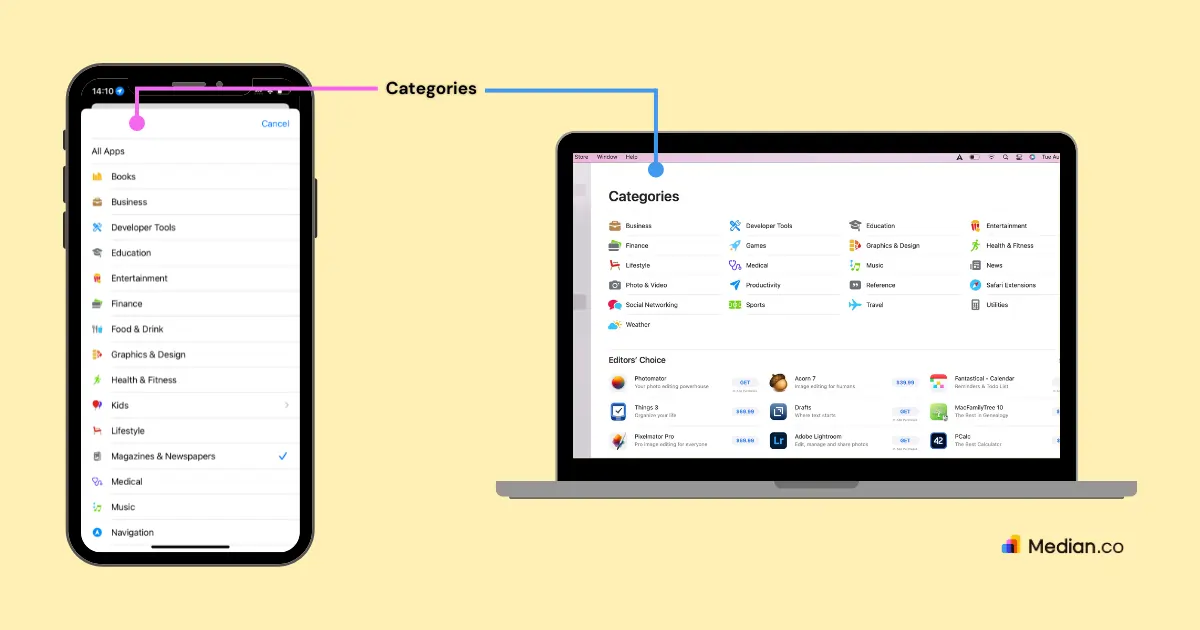
Categories help users discover new apps on the App Store. When listing your app, you have the option to set a primary and a secondary category for your app.
Primary categories are the most important categories for broader reach. For users to discover you, users can filter search results to a more refined category (solely based on primary category listings).
Setting a category also lets Apple know what tab your app should appear on — so pick a category that is relevant to you. Choosing a wrong category may result in rejection from the App Store during their review period.
Strategies to consider:
Choose a category that best describes your app – it should align with your app’s primary function
Consider the competition, a less competitive category will give your app more visibility
If unsure about your category, select one that matches closely with your app’s core functionality
Ensure App Store compliance by reviewing Apple’s category definitions and guidelines
Tip: Select a category that will not affect your app if a new feature was added — flexibility for app categories is key.
Localization
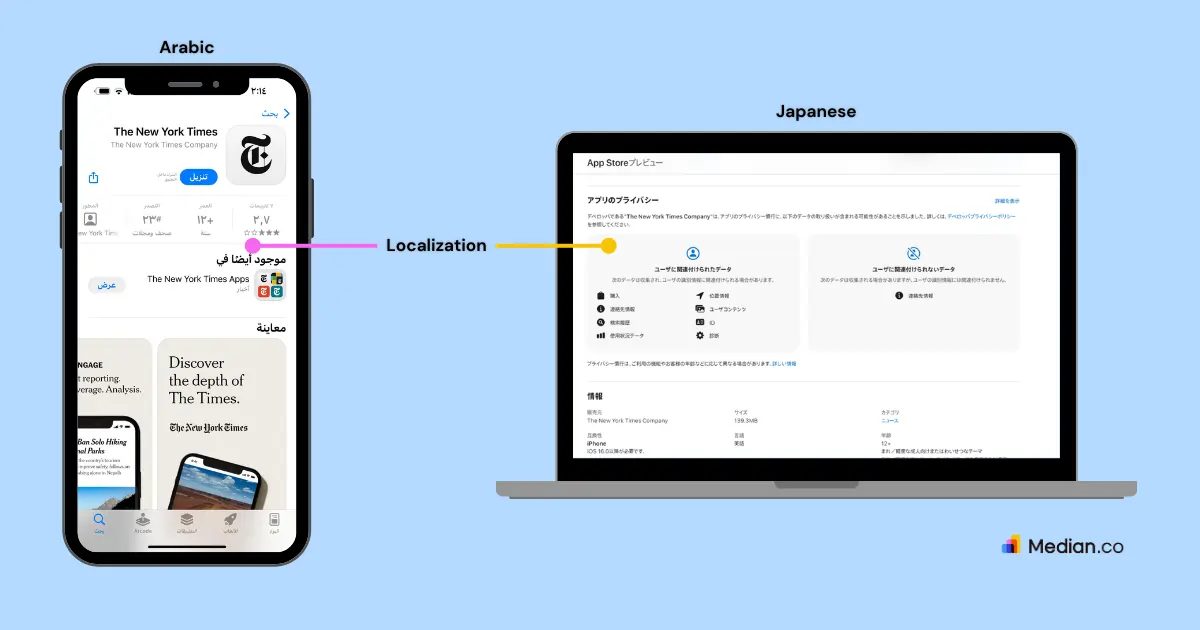
Localization is an important part of an ASO strategy to ensure accessibility and global reach.
According to Apple, if an app is available in multiple languages, then localizing the app’s description, keywords, app previews, and screenshots, for each of the available markets is key to reaching a global audience.
You can also translate your app’s name and tailor keywords if needed, to ensure your app resonates with the local audiences of each market.
Strategies to consider when localizing your App Store product page:
Due to some markets being larger, focus on those markets and languages where the potential audience base is large — examples would be languages like Spanish, Chinese, German, Hindi, etc.
Cultural relevance is key, so ensure adapting your messaging and visual to fit the cultures of each markets the app is presented in
If you’re going to localize your app, ensure every element is localized — app name, keywords, screenshots, and even the promotional text
Hire a native speaker to ensure the translated App Store listing is accurate and avoid cultural appropriation
Tip: A/B test your localized app, get feedback from local users and then improve the listing based on the feedback.
Median.co can help create the best App Store listing for your app
Median understands the challenge of getting an app accepted by the App Store.
Apple’s strict guidelines are put in place to ensure apps are of high-quality and safe for end users. Ensuring that app developers follow these guidelines ensures that app’s will be accepted by the App Store.
It becomes your responsibility to follow the above mentioned guidelines to a tee and ensure that you understand what they mean and take the necessary steps to avoid rejection.
Luckily, if App Store publishing becomes too complicated, then Median can help.
Median’s Full Service option lets Median handle App Store publishing for you so you can focus on your business, as opposed to app development, publishing, and maintenance. All apps built using Median’s App Studio, plus guidance from Median’s team of experts, guarantee a 100% App Store approval rate.
To learn more about this, book a call with our team of experts today.

to top
Related articles