Registering UDID: Guide to iOS device registration for beta access

Registering your device’s UDID is required to safely install Apple’s beta software. It verifies your device with Apple’s developer account, preventing installation issues. Registration costs $6.99–$19.99 and takes from instant to 72 hours. Find your UDID, choose a service, submit it, and install the beta profile. Proper registration protects your warranty and ensures uninterrupted beta access. Always back up and wait for confirmation before installing.
Getting early access to iOS 26 beta requires proper UDID registration. Without registering your device’s unique device identifier with Apple’s developer system, installing beta software can render your iOS device unusable.
UDID registration costs range from $6.99 to $19.99 depending on the service tier, with processing times from instant to 72 hours.
This guide covers everything you need: how to find your device’s UDID, choose a service package, and avoid common pitfalls that could permanently damage your device.
Enter your URL to build an app now
Key takeaways
UDID registration allows access to iOS 26, iPadOS 26, watchOS 26, and tvOS 26 beta versions
Registration costs typically range from $4.99 to $19.99 depending on the package level
Apple requires 24-72 hours to process new device registrations through developer accounts
Installing beta software without proper UDID registration can render devices unusable
Why you need to register your UDID
Registering your device’s UDID is essential to gain authorized access to Apple’s beta software programs.
Apple uses the UDID as a unique digital identifier to verify that your device is registered with a developer account, which is a prerequisite for installing beta versions of iOS, iPadOS, watchOS, and tvOS.
Without registering your UDID, attempting to install beta software can result in installation failures or, worse, cause your device to become unusable, requiring complex recovery or warranty repairs.
Registration ensures that Apple recognizes your device as eligible for beta testing, allowing you to safely download and install pre-release software updates.
Additionally, UDID registration helps protect your device by enabling features such as stolen device protection, minimizing the risk of service disruptions during the beta testing period.
It also helps prevent unauthorized installations that could compromise your device’s security or stability.
In a nutshell, registering your UDID is a critical step to:
Safely install and test Apple’s beta software releases
Ensure your device is recognized and authorized by Apple’s developer system
Avoid potential device malfunctions and warranty issues
Maintain access to ongoing beta updates throughout the testing cycle
Fact: Proper UDID registration safeguards your device and provides a seamless beta testing experience, making it a necessary process for developers and enthusiasts alike.
How and where to register your UDID: Step-by-step guide
Registering your UDID is essential to access iOS beta software safely. Follow these specific steps to complete your UDID registration efficiently:
Step 1: Find your device’s UDID
Using iTunes/Finder: Connect your iPhone, iPad, or Apple Watch to your computer via USB. Open iTunes (Windows/macOS Mojave and earlier) or Finder (macOS Catalina and later). Select your device, then click on the serial number to reveal the UDID. Copy this identifier.
Using a profile installer: On your iOS device, open Safari and visit a trusted UDID registration service such as Median.co's UDID retrieval tool to get UDID. Tap to install their UDID profile, then go to Settings > General > VPN & Device Management > Downloaded Profile, and tap the profile to install. Enter your device passcode when prompted, then tap Install to complete the process.
Using settings (iOS 16+): Navigate to Settings > General > About > Identifier (if available) to find your UDID.
Step 2: Choose a UDID registration service
Select a reputable third-party service or enroll in Apple’s official Developer Program ($99/year) to register your device. Some of these registration service providers include:
iOSReg – A fast, automated UDID registration service known for near-instant provisioning. Ideal for quickly testing your IPA on real devices.
UDIDRegistrations.com – Offers secure UDID registration with added perks like code signing and revoke protection. Trusted by developers for years.
AppDB Pro – Includes UDID registration as part of its IPA sideloading service. Best if you're testing and installing IPAs regularly.
Third-party services offer tiered packages with different pricing and features, such as instant processing or revoke protection. Below is a comparison table of typical package options:
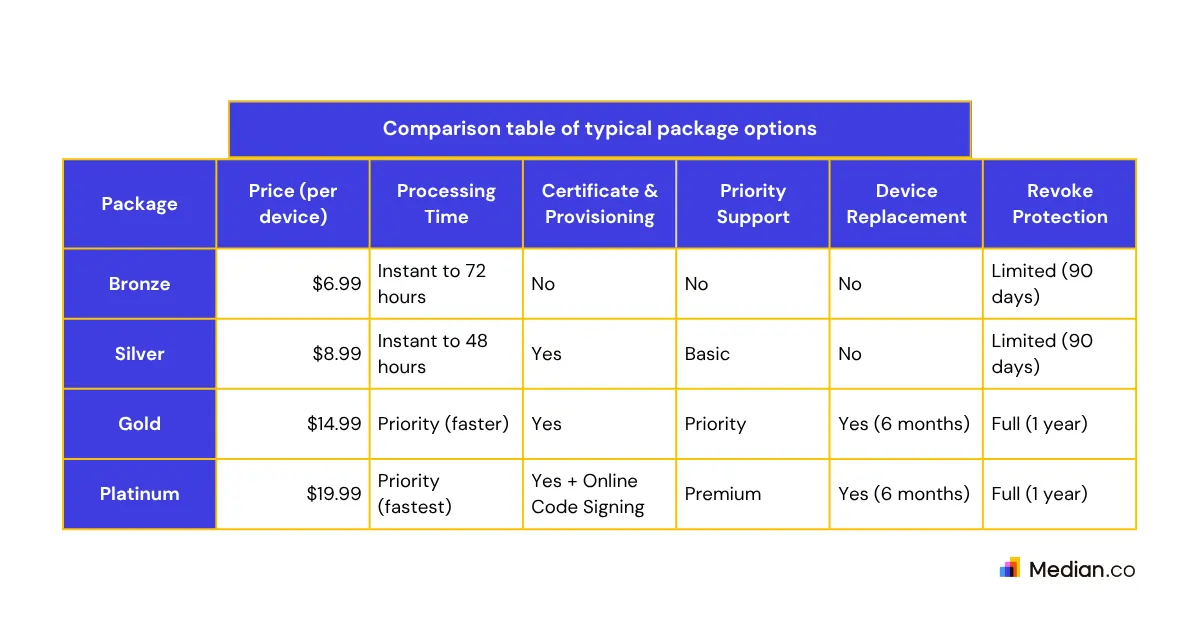
Choose the package that best fits your budget and needs for beta testing and device protection.
Step 3: Submit your UDID for registration
Visit the chosen service’s website.
Paste your copied UDID into the registration form.
Select your desired package based on your needs and budget.
Complete payment securely via PayPal, credit card, or other accepted methods.
Step 4: Confirm registration and install beta profile
After successful registration, you will receive a confirmation email or notification.
Download and install the beta profile provided by the service.
On your device, tap Install Profile under Settings > General > Profile.
Restart your device to enable beta software updates.
Important Notes:
Avoid manually typing your UDID to prevent errors; always copy and paste.
Wait for full registration confirmation before installing any beta software to prevent security delays or device issues.
Back up your device completely before proceeding with beta installations to avoid data loss.
If you own an Apple Watch, register the paired iPhone’s UDID as well.
By following these steps, you ensure a smooth and secure UDID registration process, minimizing risks associated with installing beta software.
Want to learn more about our plugins?
Launch a full-feature native app without native development!

Beta software access
Once registration completes successfully, your device gains access to Apple’s closed beta program for iOS 26, iPadOS 26, watchOS 26, and tvOS 26.
Always back up your device before installing beta software, as it may cause data loss, reduced battery life, or hardware issues.
Note: Developer betas release earlier but are less stable than public betas.
After registration, download the beta profile from your service’s page. Tap install, then tap profile to complete installation. Restart your device and check Settings > General > Software Update to access betas.
Beta access is maintained automatically throughout Apple’s testing cycle with regular updates.
Important warnings and considerations
Installing beta software without proper UDID registration creates severe risks including permanent device damage requiring warranty repair or replacement.
Apple explicitly warns against unauthorized beta installations and may deny warranty coverage for related damages.
Critical risk factors:
Devices may enter an unusable state requiring complex recovery procedures
Data loss frequently occurs during beta installations and updates
Apple may refuse warranty repair for beta-related damage
Sudden registration revocation can disable devices running beta software
Mandatory backup requirements: Always create complete iTunes or Finder backups before starting registration or installation. Store backups on separate devices to avoid service disruptions during recovery. Verify backup integrity before proceeding with beta installations.
Legal and ethical considerations: Third-party registration services may violate Apple’s terms by sharing developer account access. While legal risk to users is low, device security and functionality could be affected by Apple’s enforcement.
Wait for full registration confirmation before installing beta software. Installing prematurely can cause security delays or require restarting the registration process.

Want to know how it all works?
Get hands-on with Median’s comprehensive documentation, and build your app with ease.

Troubleshooting common issues with UDID registration
Registration delays often occur during major beta releases due to high demand and Apple server load. Even premium packages may face extended processing times.
Common issues and solutions:
Processing delays: High demand can slow registration. Premium packages get priority but may still experience delays. Check service status for updates regularly to stay informed.
Apple server downtime: Outages prevent registration until resolved, usually within hours. During these times, avoid submitting new requests to prevent errors.
UDID format errors: Manual entry mistakes cause failures. Always copy and paste your UDID and verify its format carefully to ensure successful registration.
Payment issues: Bank restrictions or fraud prevention may block payments. Use PayPal or contact your bank to authorize charges. Double-check payment details to avoid transaction failures.
Customer support varies by provider and package level, with premium users receiving faster responses and dedicated assistance.
Conclusion
Registering your UDID is a crucial step to safely access and test Apple’s beta software on your iOS device.
Proper registration ensures your device is authorized, protects against potential security risks, and helps avoid costly warranty repairs.
By following the outlined steps and choosing a reputable registration service, you can enjoy early beta access with confidence and minimal risk.
Always back up your device and wait for registration confirmation before installing beta software to ensure a smooth and secure experience.
Case Studies
Discover how Median empowers companies to speed mobile app development, engage users, and reduce expenses.
Frequently asked questions
How long does UDID registration take to process?
Standard processing requires 24-72 hours, while premium packages often complete within hours. Processing times increase during major beta releases due to high demand.
Can I register multiple devices with one purchase?
Most services charge per device, though some offer bulk discounts for multiple registrations. Each device requires separate UDID submission and processing.
What happens if Apple revokes my device registration?
Registration revocation immediately disables beta software access and may render devices unusable until restored to stable iOS versions. This risk affects all third-party registration services.
Is UDID registration legal and safe for my device?
Individual registration carries minimal legal risk, but device safety depends on proper registration completion. Improper installations can cause permanent damage requiring costly repairs.
Can I downgrade from beta to stable iOS after registration?
Downgrading options depend on available iOS versions and device compatibility. Some beta versions prevent downgrading until new stable releases become available.
Do I need to register UDID for testing native apps and webview apps?
Yes, to test both native and webview apps on your iOS device using beta software or ad hoc distribution, your device's UDID must be registered with a developer account. This registration authorizes your device to install and run apps outside the App Store, ensuring secure and compliant testing of both app types.

to top
Related articles